
Developers
The Kitchen Sink: Every Kind of RCS Message in One Example App
Text it and it sends a menu. Tap a card and that kind of message arrives on your phone, with a line that names the part of the API that made it.
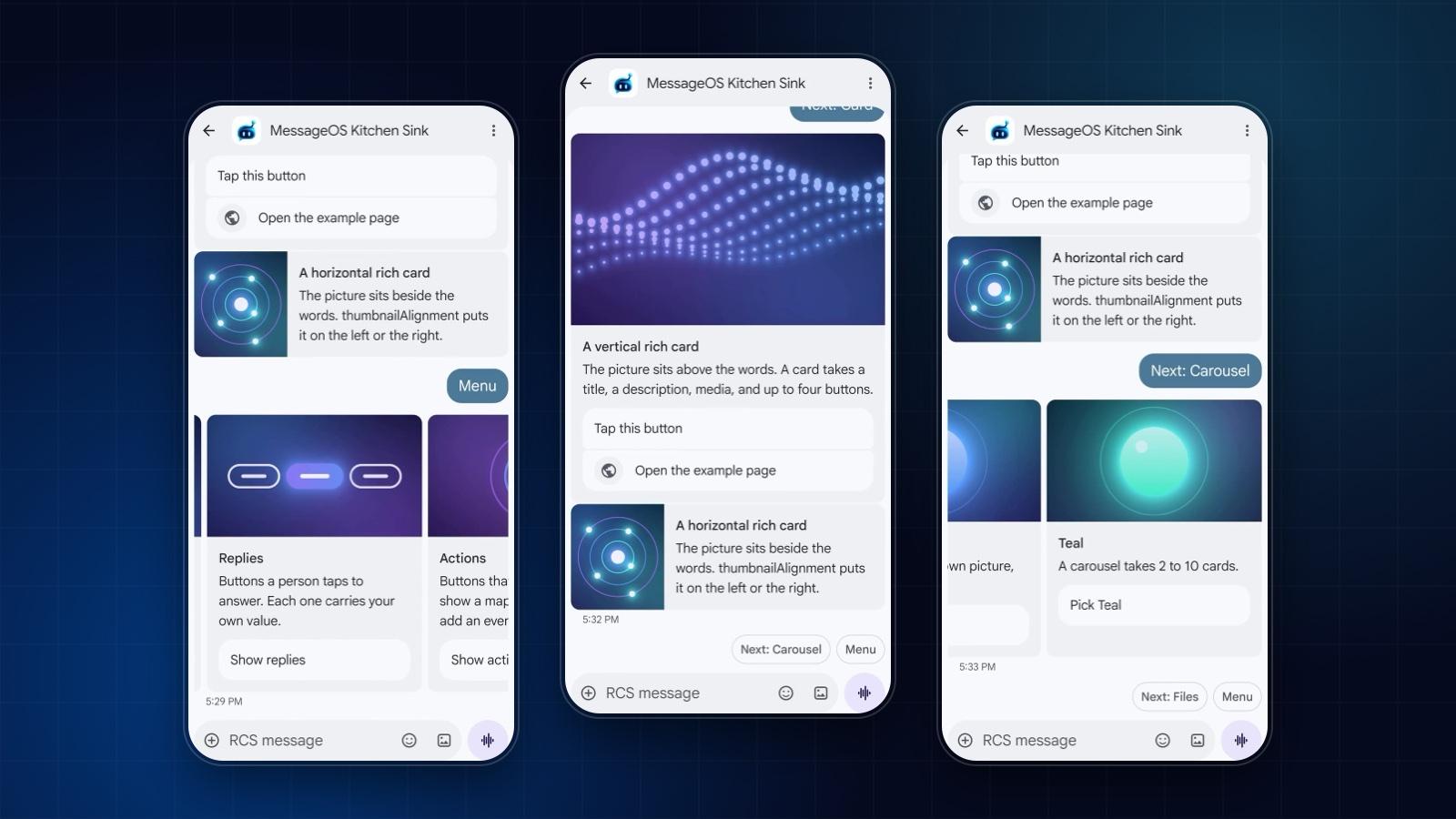
The MessageOS Kitchen Sink is a small working app for a business whose own system answers its customers. Text it, and it answers with a menu. Each card on the menu runs one demo, and every demo shows one more kind of message the MessageOS API can send.
It hears each message as reply.received at a signed webhook and answers with POST /v1/messages. The Kitchen Sink showcase in the docs, now open to everyone, has a screenshot of every demo and a card for everything the app can do. The code is in a public repository at github.com/messageos/Kitchen-Sink-API-Example. Clone it, or copy what you need.
Watch it on a phone
These clips were recorded on an Android phone, in a conversation with the Kitchen Sink agent. Nothing plays until you press play, and no clip has sound.
Ten demos, one tour
Every demo ends with a Next: <name> button for the demo after it and a Menu button, so you can walk all ten in order. The last one ends with Menu alone.
| Demo | What arrives on the phone | The API behind it |
|---|---|---|
| Text | A plain text message | text |
| Replies | Text with buttons to tap as an answer | suggestions of type reply, each with its own postbackData |
| Actions | Text with a button for every action | openUrl (webview and browser), dial, viewLocation, shareLocation, createCalendarEvent |
| Card | A vertical rich card, then a horizontal one | card with orientation and thumbnailAlignment |
| Carousel | Three cards to swipe, each with its own button | carousel with cards |
| Files | An image, a video, an audio file, or a PDF | file.url, and file.thumbnailUrl for the video |
| Location | A button that asks for a location | A shareLocation suggestion, answered as reply.received with location |
| Typing | The typing indicator, then a message | POST /typing, a two second pause, POST /messages |
| Expiry | A text that expires, with a declared traffic type | ttlSeconds and trafficType |
| Device check | A short list of what this phone supports | GET /capabilities |
It also answers what a person sends on their own. A typed word brings the menu or runs a demo, a photo or a file is answered with what arrived, a shared place is answered with its coordinates and a View on map button, and anything else is echoed back. STOP, START, HELP, and the other keywords get nothing from the app, because MessageOS answers them itself.
The hard parts of a receiver, done for you to copy
The receiver is one route, and it follows five rules in order, each marked in the code:
- Read the raw body. The signature covers the exact bytes MessageOS sent.
- Check the signature in constant time. HMAC-SHA256 of the timestamp, a period, and the raw body, keyed with the webhook's signing secret.
- Refuse a timestamp more than 300 seconds off, so a captured request cannot be played back later.
- Never act twice on one event. Every send carries an
Idempotency-Keybuilt from the person's message, so a redelivered event sends nothing new. - Answer 2xx only when the work is done. It sends first and answers 200 after. When a send is worth another try, it answers 500 and MessageOS delivers the event again, which rule 4 makes safe.
Every answer names the person's message in inReplyTo, so it counts as a reply, and no demo sends more than three messages. The last message of every answer carries at least a Menu button, so a person always has something to tap.
The app also reads GET /v1/whoami and adapts to your agent. Where rich messages or the extra features are not turned on, it says so in one plain line instead of failing.
Run it yourself
It is plain JavaScript for Node 20 or newer, with no runtime dependencies. You need three things:
- Node 20 or newer.
- A MessageOS client key, made by an owner or admin of your brand in the dashboard under Developers, with
messages:write,contacts:read,contacts:write,conversations:read,webhooks:manage, andusage:read. - A phone the agent can reach. Until your agent is launched, it reaches only the phones MessageOS has added as its testers.
The app answers every message itself, so the MessageOS assistant must not answer too. Ask MessageOS to set your agent to API only, or pause the assistant on the Agent page of the dashboard.
Then, from the repository:
npm install, then copy.env.exampleto.envand put your key in it.npm run checkcallsGET /whoamiand prints what your key and your agent offer.- Give the app a public https address, such as a tunnel to your own computer, and set it as
PUBLIC_URL. npm startruns the app.npm run setup:webhookregisters the webhook and prints its signing secret once. Put it in.envand start the app again.npm run send:menu -- +15555550123, with your own number in place of the sample one, sends the menu to your phone.
npm test runs every test with no network and no key. The example app page has the full setup.
See your own brand next
The Kitchen Sink shows what the API can send. To see what your own brand looks like in RCS, with your logo, your name, and a card drafted from your website, enter your website and the preview arrives on your own phone.
Related articles
About a minute
See your branded text message on your own phone.
Enter your website. We draft a verified business profile and a first message from what your site says, and send it to your phone.